Sign In to X
When you're on the new account screen in Cyd, choose the X platform. You'll be asked if you still have access to your X account:
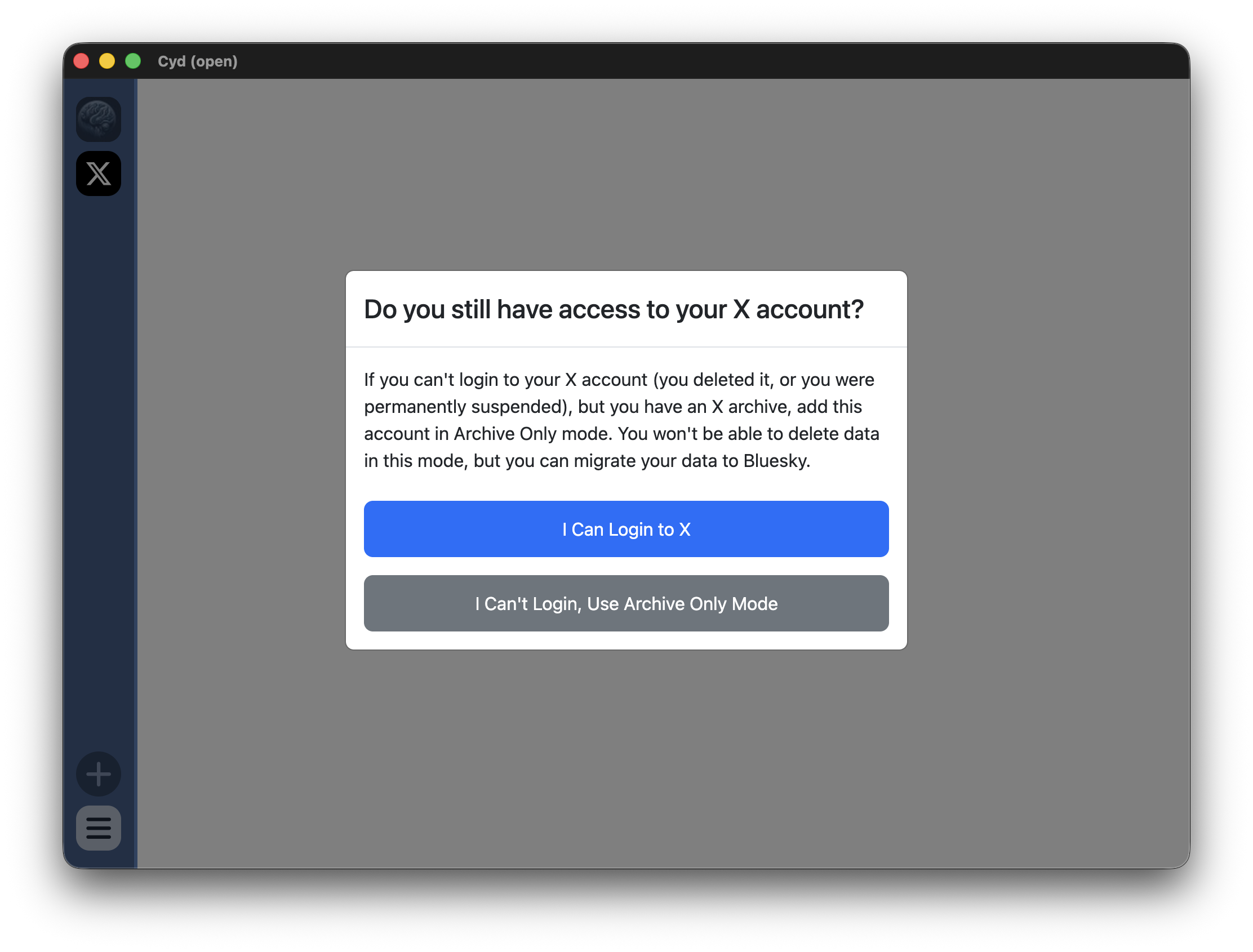
If you still have access to your X account, choose I Can Login to X. All features of Cyd will work.
However, if you don't have access to your X account anymore (maybe you already deleted it, or you've been permenantly suspended), but you have an archive of your data, you can still use Cyd in Archive Only Mode. In this case, I Can't Login, Use Archive Only Mode.
After clicking I Can Login to X, you will see the X sign in page, like this:
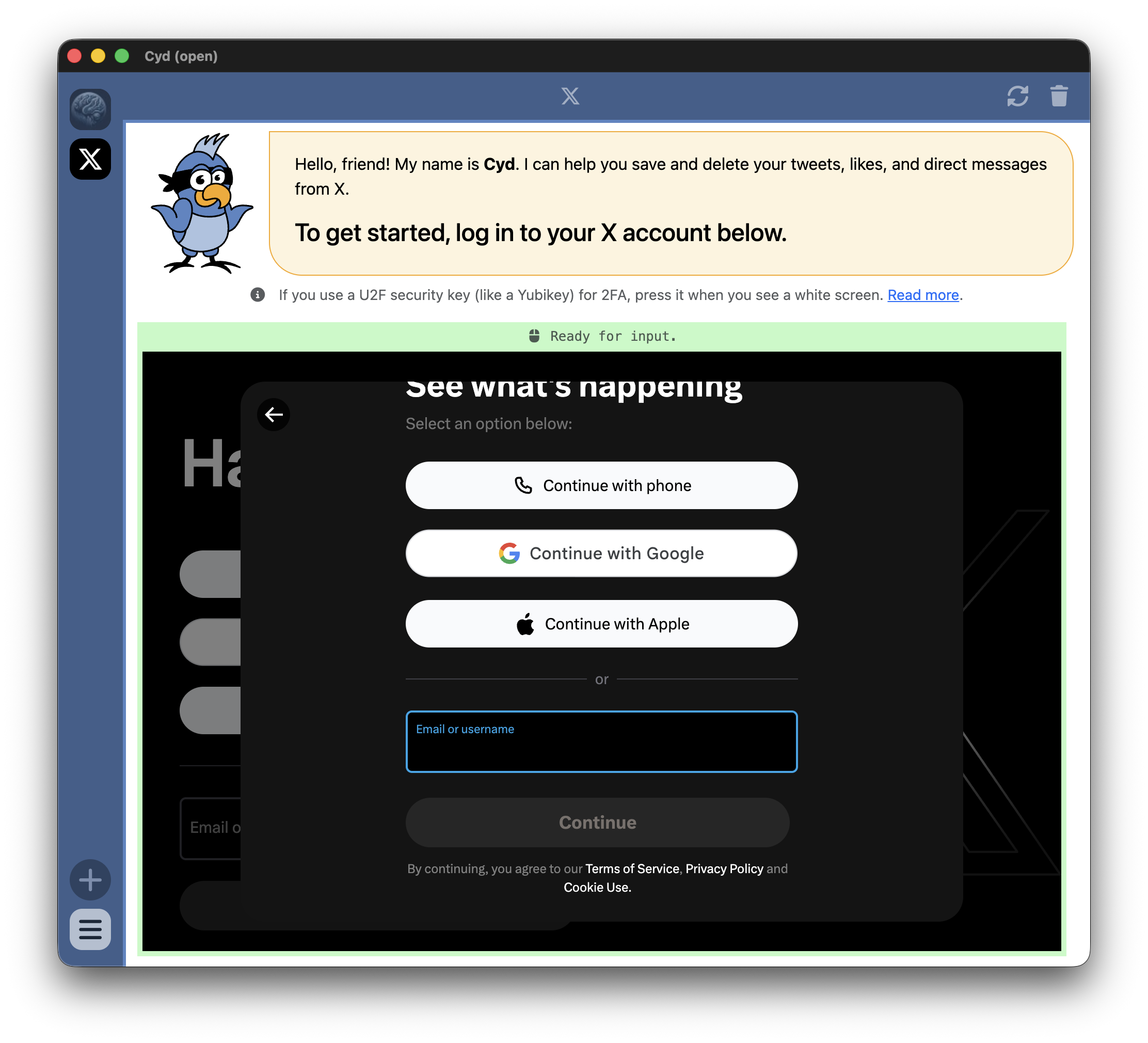
Cyd (the bird) is at the top of the window giving you instructions, and the bottom part of the window is Cyd's embedded web browser.
When you sign into your X account within Cyd's embedded browser, it's the same as signing in using any other browser on your computer: Your password is sent directly from your computer to X's servers and it's encrypted using HTTPS. Cyd's server doesn't collect your password or have any access to your account. Only the Cyd app running locally on your computer does.
Go ahead and sign in to your X account using your username and password.
If you protect your X account with two-factor authentication, you'll need to enter the 2FA code you get to sign in here too. If you use a U2F security key (like a Yubikey), the screen will turn white when it's time for you to press the button. Read more.
After you sign in, Cyd will immediately start driving your browser to determine your username, your profile picture, and an estimate of the number of tweets and likes in your X account.
When it's done, you'll end up at the Dashboard screen. Continue to Dashboard.